
Rich Pins Pop Your Pinterest Posts! Here’s How to Add ’em Fast.
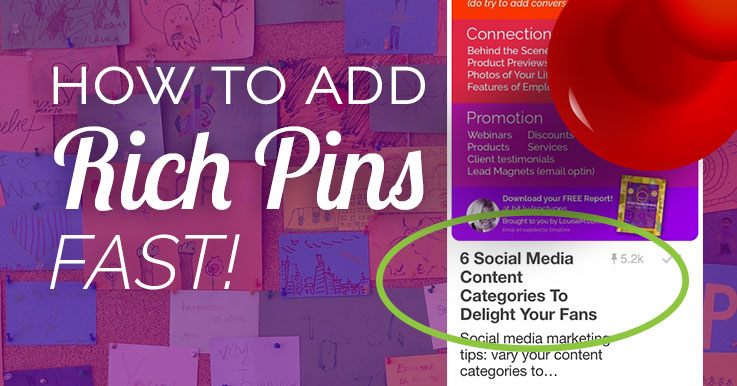
Have you heard of Rich Pins?
Pinterest Rich Pins have been available for some time – but are you using them?
You should! They really pop your presence on Pinterest.
Rich Pins are pins that include extra information right on the pin. Article Rich Pins include a bold headline, in addition to the story description, in the stream.
And when someone clicks the Rich Pin – not just the bold headline, but a little push to follow the “Rich Pinner!” See the difference?
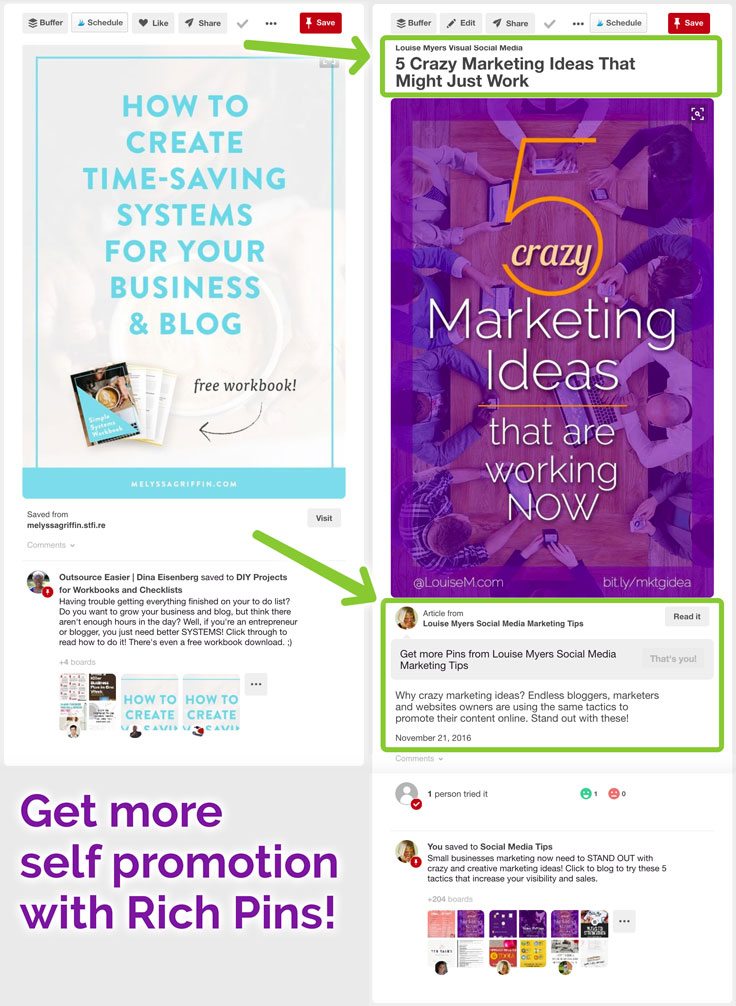
Perhaps you haven’t added them because you didn’t realize how fast and easy it is – if you blog with WordPress. If you don’t, you might need some tech help to add the needed markup language to your site. But on WP, it’s done for you!
How to Add Article Rich Pins on WordPress
There are now several types of rich pins. Article Rich Pins are perfect for bloggers.
There are also product, recipe, movie, place, and app rich pins. This tutorial only works for article pins.
You must be set up as a business account on Pinterest. It’s easy to switch, and you get free analytics! Set up or convert to a Pinterest business account here.
Step 1: Add Yoast SEO Plugin.
Activate it. Then go to the Social tab in its settings, then to the Facebook tab. Check Add Open Graph meta data at the top.
NOTE: If you use Genesis themes, you already have Yoast, so skip this step! If you use a different SEO plugin, ask a techie for help.

Step 2: Validate Your Rich Pins
Just go to this link, enter a URL from your site, and check that the Rich Pin preview is what you expected.

Step 3: Apply
Click Apply Now, and wait to hear from Pinterest.
This whole process takes less than 5 minutes!

It may take a couple weeks to hear from Pinterest with your approval. You’ll be so glad you took a few minutes to set it up!
Share this post with others who could benefit from Pinterest Rich Pins. Thanks!
{loadposition user99}


Leave a comment