
Easily Manage Multiple Instagram Accounts with Account Switching

Got multiple Instagram accounts?
One for business, one for fun?
Another one for another business? 😉
This is a highly recommended, yet frustrating, tactic.
Recommended, because Instagram users love to follow laser-focused accounts.
Frustrating, because you’ve had to sign in and out of one account to access another.
Until NOW!
Instagram has announced account switching! And it’s been rolling out to users for a week already.
I just got it minutes ago! (Yes, I have been checking obsessively for days).
How to Add Instagram Account Switching
Account switching will be available as part of Instagram version 7.15 for iOS and Android. Make sure your app is updated. If it IS and you still don’t have account switching, one user reported that deleting and reinstalling the app solved this issue.
You can add multiple Instagram accounts to switch between them without having to log out and log back in.
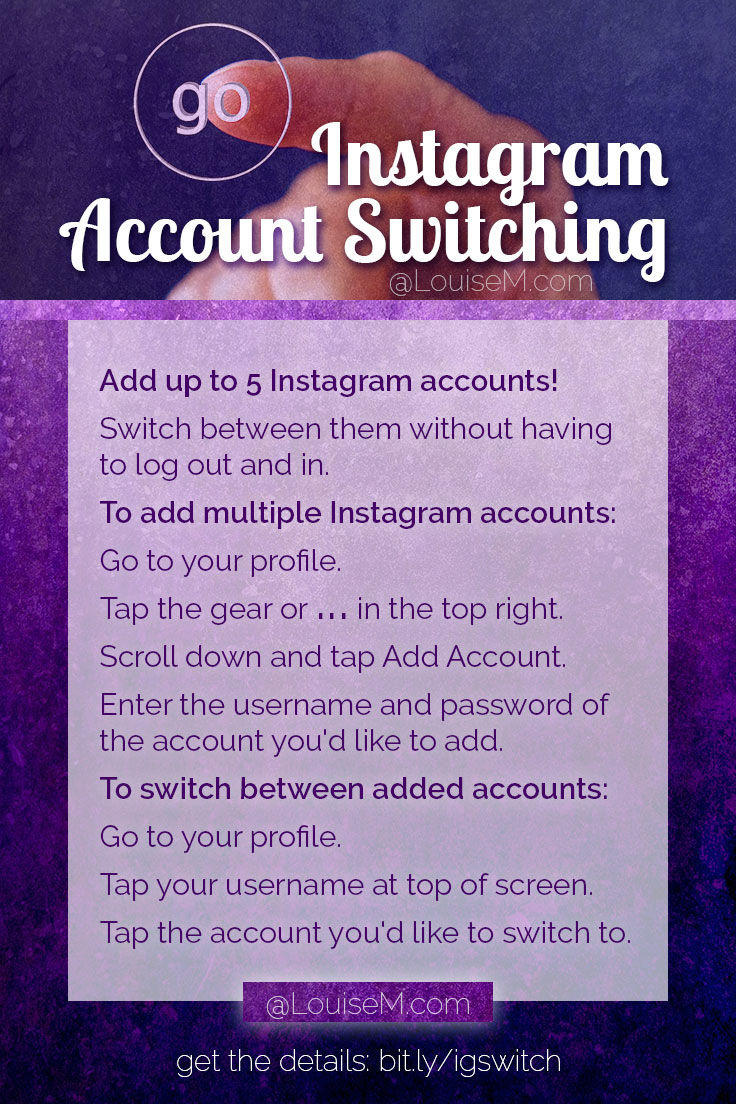
To add multiple Instagram accounts:
- Go to your profile and tap
or
in the top right.
- Scroll down and tap Add Account.
- Enter the username and password of the account you’d like to add.
To switch between accounts you’ve added:
- Go to your profile.
- Tap your username at the top of the screen.
- Tap the account you’d like to switch to.
Note that you can add up to 5 accounts. source
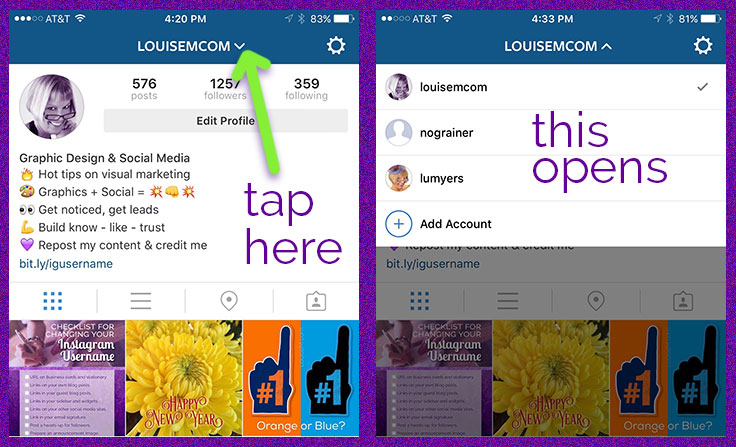
From now on, just tap your username at the top of your profile to switch between accounts.
Once you have multiple accounts added, you’ll see your profile photo appear in places throughout the app so you can always tell which one you’re using at the moment. I noticed that my account name appears in the comment field so I’m sure which account I’m using. Nice!

Here’s a short video demonstration from Donna Gilliland:
Instagram is rolling out multiple account switching to some iOS users. I was thrilled to have the option this morning. I created a quick video on how to setup multiple account switching on your iPhone. Hopefully you have this feature now.
Posted by Donna Gilliland on Thursday, February 4, 2016
If I’ve added multiple Instagram accounts, what push notifications will I get?
If you’ve added multiple Instagram accounts, you may get push notifications from any account that has them turned on. This depends on when you last logged in and the number of devices that are logged in to an account.
How do I remove an Instagram account I’ve added?
To remove an Instagram account you’ve added, you can log out of the account:
- Go to your profile and switch to the account you’d like to remove.
- Tap or in the top right.
- Scroll down and tap Log out of [username] or Log out of All Accounts. Logging out of all accounts will remove all the accounts you’ve added.
This is a long-awaited feature, and I’m so excited to have it! For my business account, I’ve been using an older version of the Instagram app on my old iPad. For some reason, I haven’t gotten any DMs on this account for about a month. Now I can access both accounts from my phone! And I have a number of DMs waiting there for me. Oh well… at least now I can get them!
Have you gotten Instagram account switching yet? Has it made your life easier for managing multiple Instagram accounts?
{loadposition user99}


Leave a comment